SOYATOOLS / GUIDES
How to open a DST embroidery file on Windows
A .dst file is a machine embroidery design in the Tajima DST format. It stores where each stitch goes, jumps and color changes, but no thread colors. You can open it on a Windows PC without machine software; any colors you see on screen are default colors or come from a separate color file.
1. Open the DST file
- Install PES & DST Embroidery Viewer from Microsoft Store. Opening and viewing are free.
- Choose Open and select the .dst file, or drag the file or its folder onto the window.
- Check the panel on the right: size in mm and inches, stitches, colors, color changes, trims and jumps. A DST file is marked No color info.
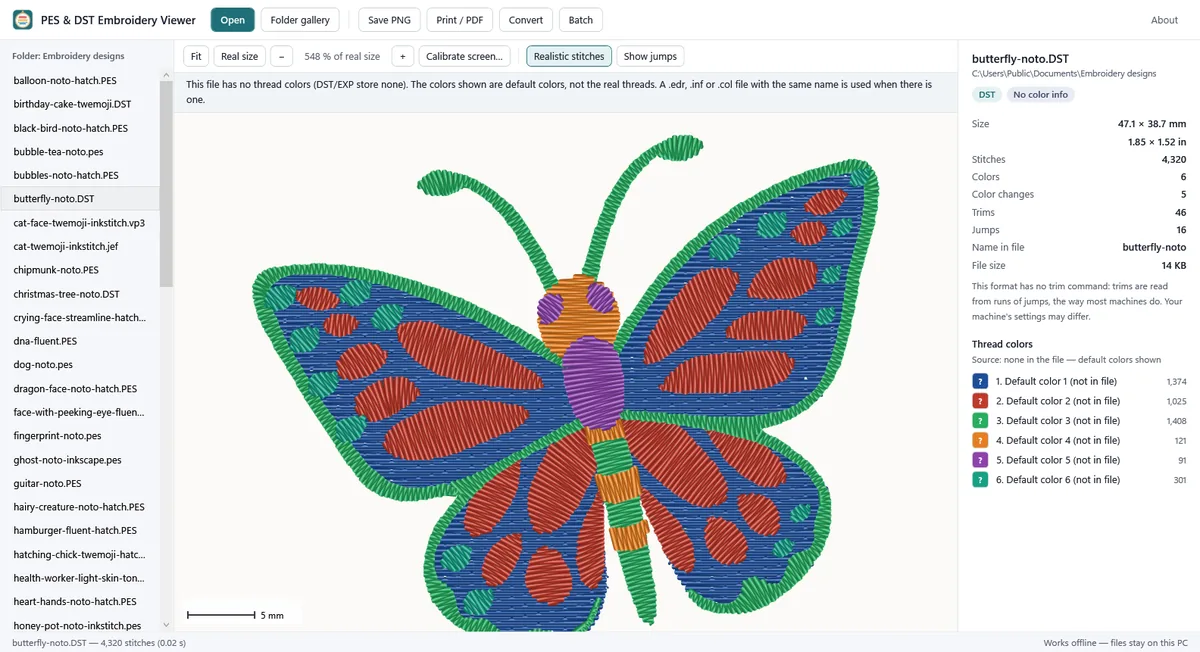
Why a DST file has no thread colors
DST records the stitches and tells the machine when to change thread, but not which thread. When you stitch it, you choose the colors on the machine, or follow a thread list from whoever made the design.
The app does not pretend to know the colors. It draws the design with default colors, marks the file No color info, and the thread color list shows “Default color 1 (not in file)” and so on. EXP files work the same way: they store no thread colors either.
Color files next to the design: .edr, .inf and .col
Some embroidery programs save the thread colors in a separate small file with the same name, next to the design: for example butterfly.dst and butterfly.edr. If a .edr, .inf or .col file with the same name is in the same folder, the app uses its colors, and the color list says the colors come from that file. .rgb files are read but not checked yet. Keep the color file in the same folder as the DST when you copy or send designs.
Trims and counts in DST files
- DST has no trim command. Trims are read from runs of jumps; whether your machine cuts there depends on its settings.
- The stitch and color-change counts are counted from the stitch data itself. The numbers written in a DST header mean different things in different programs, so the app does not rely on them.
Real size, gallery and PNG
As with any format, Real size shows the design at 100 % on screen (check it once with Calibrate screen… and a ruler or bank card), Folder gallery shows every design in a folder, and Save PNG saves one picture. These are free. Real-size printing and PDF, conversion and folder batch are part of Pro ($14.99, one-time).
Converting DST to PES or other formats
A DST design can be saved as PES, PEC, JEF or EXP with Pro. Because the DST has no colors, the new file gets default colors, and the app tells you before saving. Converted files were not tested on real machines; stitch a test first. See Convert PES to DST (and JEF, EXP) for what each format keeps.
Limits
- The app shows default colors for DST and EXP; it cannot recover the real thread colors without a color file.
- Damaged files are not repaired. The app opens what it can read and tells you the file may be damaged.
- There are no hoop checks for particular machines; the size is shown so you can compare.
FAQ
Why are the colors on screen different from the photo of the design?
The DST file does not contain the colors. The colors on screen are defaults. Use the color file or thread list that came with the design, if there is one.
Is my file uploaded?
No. Design files are read on your PC only, and the original file is never changed.
Does it open other formats?
Yes: .pes, .pec, .jef, .exp, .vp3, .xxx and .hus (beta).