SOYATOOLS / GUIDES
How to check an XER or MPP schedule against the DCMA 14-point assessment
The DCMA 14-point assessment is a common way to review a schedule’s health before it is submitted: missing logic, leads and lags, hard constraints, float, durations, dates, resources, missed tasks and the critical path. MPP & XER Viewer runs all 14 checks on an open .xer (Primavera P6) or .mpp (Microsoft Project) file, on your PC, and shows which pass and which fail.
Run the quality check
- Install MPP & XER Viewer from Microsoft Store and open your .xer or .mpp schedule (.mpx and XML schedules open too).
- Choose Quality check. The window shows the score (for example “5 of 14 checks passed”), the status (data) date, how many activities were checked, and notes about the file.
- Read the 14 check cards. Each shows the check, its limit and Pass, Fail or Not checked.
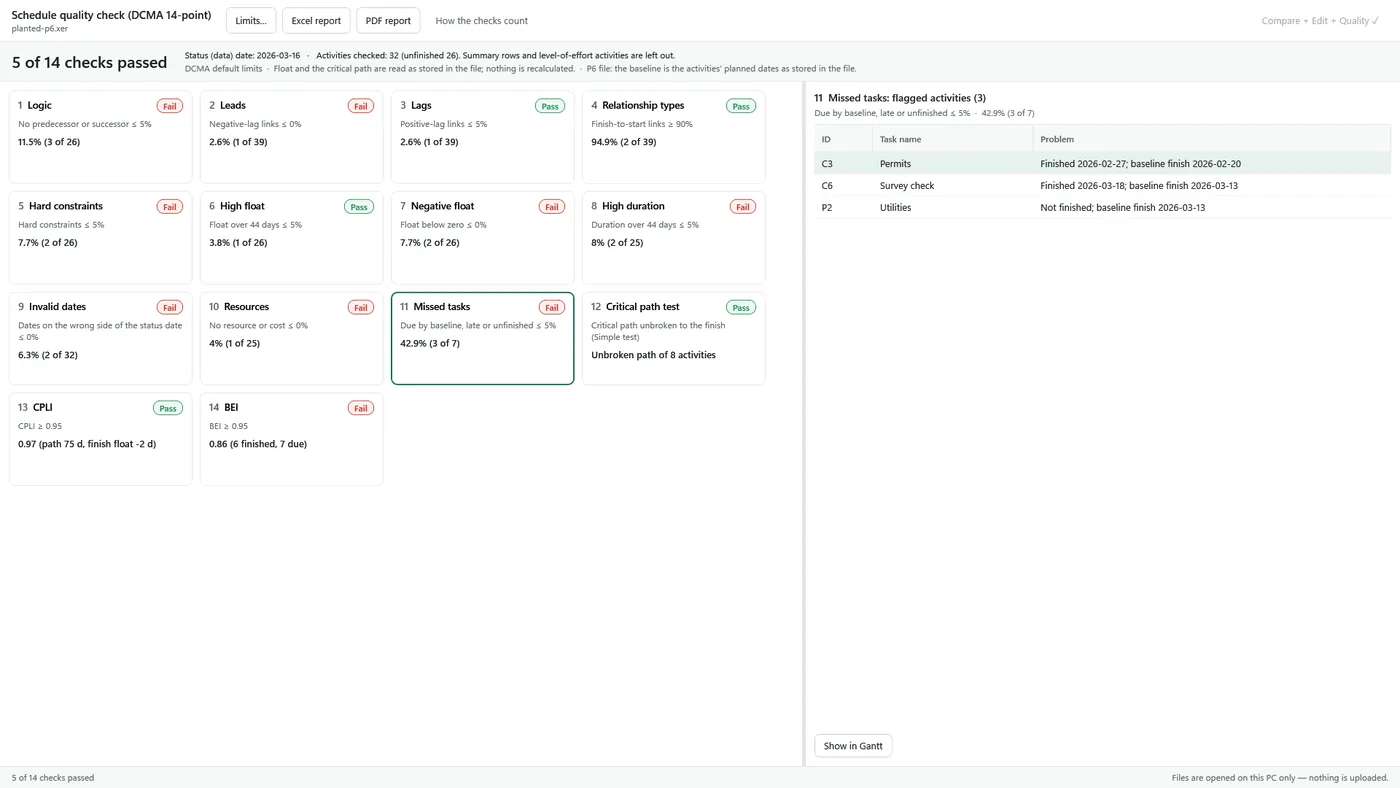
- With the subscription, click a card to list the flagged activities, then Show in Gantt (or double-click) to jump to that activity in the viewer’s table and Gantt chart.
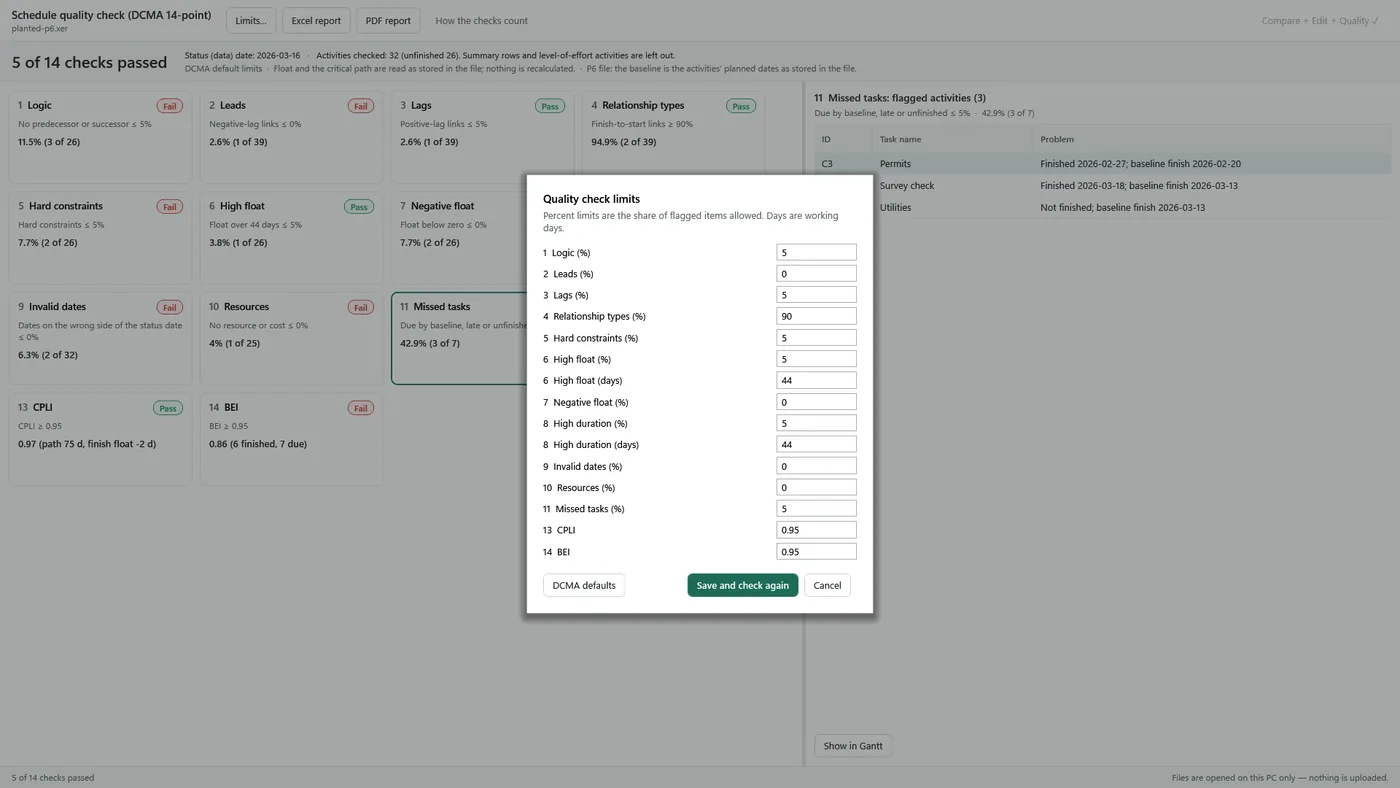
- With the subscription, use Limits… to set your contract’s limits, or DCMA defaults to go back, and save an Excel report or PDF report.
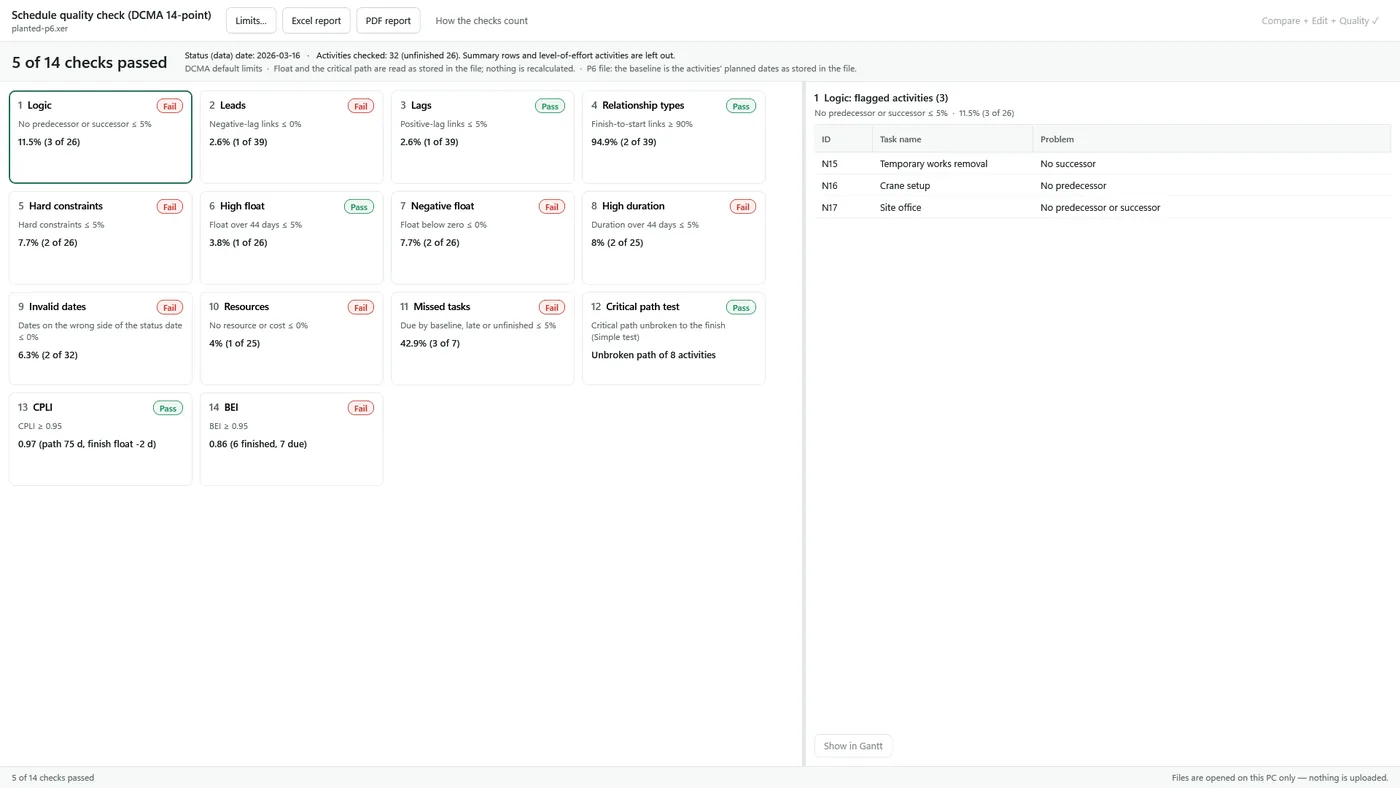
How activities are counted. Activities are all tasks except summary/WBS rows and P6 level-of-effort or WBS-summary activities. Unfinished means no actual finish and below 100%. Relationships are links between two activities whose successor is unfinished. Days are working days as stored in the file. The score is passed checks ÷ (passed + failed); checks marked “Not checked” are not counted as failures.
The 14 checks and their default limits
These are the DCMA default limits the app starts with. “Not checked” lists what makes a check impossible to answer from the file.
| No. | Check | What it looks at | Default limit | Not checked when |
|---|---|---|---|---|
| 1 | Logic | Unfinished activities with no predecessor or no successor. The project’s start and finish milestones are allowed. | ≤ 5% | No unfinished activities |
| 2 | Leads | Relationships with a negative lag. | 0% | No relationships |
| 3 | Lags | Relationships with a positive lag. | ≤ 5% | No relationships |
| 4 | Relationship types | Share of finish-to-start relationships. | ≥ 90% | No relationships |
| 5 | Hard constraints | Unfinished activities with must start/finish on or start/finish no later than constraints (in P6 files: mandatory, on or before, start on and finish on). | ≤ 5% | No unfinished activities |
| 6 | High float | Unfinished activities whose stored total float is above 44 working days. | ≤ 5% | The file stores no total float |
| 7 | Negative float | Unfinished activities whose stored total float is below zero. | 0% | The file stores no total float |
| 8 | High duration | Unfinished activities (not milestones) whose baseline duration is above 44 working days. Without a baseline, the current duration is used. | ≤ 5% | No unfinished activities |
| 9 | Invalid dates | Activities forecast to start or finish before the status date, or with an actual date after it. | 0% | No status (data) date |
| 10 | Resources | Unfinished activities of a day or more with neither a resource nor a cost. | 0% | The schedule has no resources or costs at all |
| 11 | Missed tasks | Activities whose baseline finish is on or before the status date and that finished late or are not finished. | ≤ 5% | No status date, no baseline, or nothing was due |
| 12 | Critical path test | Simple test: the last activity must be critical and the stored critical path must run back to the start of the remaining work without a break. | Unbroken path | No stored total float or critical flags |
| 13 | CPLI | (Critical path length + finish total float) ÷ critical path length. The length is the working days from the status date to the finish. | ≥ 0.95 | No status date, no stored finish float, or the status date is at or after the finish |
| 14 | BEI | Activities finished ÷ activities due by the status date (baseline finish). | ≥ 0.95 | No status date, no baseline, or nothing was due |
Percent limits are the share of flagged items allowed. With the subscription you can change every limit (15 values, including the 44-day limits for checks 6 and 8); a value outside the allowed range is refused, and the DCMA defaults are one click away.
Why a check says “Not checked”
Several checks need information that not every file has. Instead of failing them, the app marks them Not checked and gives the reason:
- No status (data) date: checks 9 Invalid dates, 11 Missed tasks, 13 CPLI and 14 BEI cannot be measured. In our tests, public .mpp sample files without a status date showed exactly these four as not checked.
- No baseline: checks 11 and 14 are not checked, and check 8 uses current durations instead of baseline durations.
- No stored total float: checks 6, 7, 12 and 13 cannot be measured.
- No resources or costs anywhere in the schedule: check 10 is not checked.
If you need those checks, ask for a file that has been statused and baselined, or set the status date and baseline in the scheduling software before exporting.
Limits of this check
- Float and the critical path are read as stored in the file. Nothing is recalculated.
- Because of that, check 12 is a simple test of the stored critical path, not the formal DCMA test that adds a delay and recalculates the schedule.
- For P6 (.xer) files, the baseline is the activities’ planned dates as stored in the file. If a separate baseline project was assigned to the schedule, results can differ.
- Links in a P6 file to activities of other projects that are not in the file can make those activities show as missing logic; the window tells you how many such links there are.
- CPLI uses working days of the project calendar (Monday to Friday when there is none).
- The checks were verified against test schedules with deliberately planted problems, where every count matched a hand count, and 44 other public sample files were checked without errors. They have not yet been compared against real P6 projects with actuals and baselines, so review the results before you submit them.
Speed: a 5,227-activity XER file was read in 0.27 seconds and checked in 0.005 seconds on our test PC.
Free and subscription
| Free | Compare + Edit + Quality Check subscription | |
|---|---|---|
| Pass / fail / not checked for all 14 checks | Yes | Yes |
| Overall score | Yes | Yes |
| Each check’s value (for example 11.5%, 3 of 26) | — | Yes |
| Flagged activities, jump to the Gantt chart | — | Yes |
| Change the limits | — | Yes |
| Excel and PDF quality reports | — | Yes |
| Schedule comparison, editing and all Pro features | — | Yes |
The subscription is $99.99/year or $12.99/month with a 1-week free trial, renews automatically and can be cancelled in your Microsoft account. The one-time Pro purchase does not include the quality check lists, limits or reports.
Files are opened on your PC only; nothing is uploaded. See the Privacy Policy.
FAQ
Does the app recalculate the schedule before checking it?
No. It reads float, the critical path and dates as stored in the file. That is why check 12 is a simple test of the stored critical path rather than the formal recalculation test.
Why are four checks “Not checked” on my .mpp file?
Usually the file has no status (data) date, so Invalid dates, Missed tasks, CPLI and BEI cannot be measured. A missing baseline also leaves Missed tasks and BEI unchecked.
Can I use my contract’s limits instead of the DCMA defaults?
Yes, with the subscription. Open Limits…, change the values and choose Save and check again. DCMA defaults restores the original limits.
What does the free version show?
Every check’s pass, fail or not-checked result and the overall score. The values, flagged activities, limits and reports need the Compare + Edit + Quality Check subscription.
Which file types can be checked?
The schedule open in the viewer: Primavera P6 .xer and Microsoft Project .mpp, .mpx and XML files.