SOYATOOLS / GUIDES
Compare two schedule versions: what changed this month?
A monthly update can change activities, dates and logic even when the project finish date stays the same. Compare the previous and latest schedule, check how activities were matched, and review the changes before writing the update narrative.
The update with schedule comparison is currently in Microsoft Store certification. Check the Store for availability of the new features.
1. Choose the previous and latest files
In MPP & XER Viewer - Gantt Chart & Schedule, open schedule comparison and choose the previous file and the latest update. Confirm the order and data dates. The comparison can use different formats, including MPP versus XER and Microsoft Project XML versus P6 XML. Files stay on your PC.
XER (Primavera P6) comparison is in beta. Check key results, including float and critical path, against P6 before submitting a report, and let us know if anything differs.
2. Review the summary before the detail
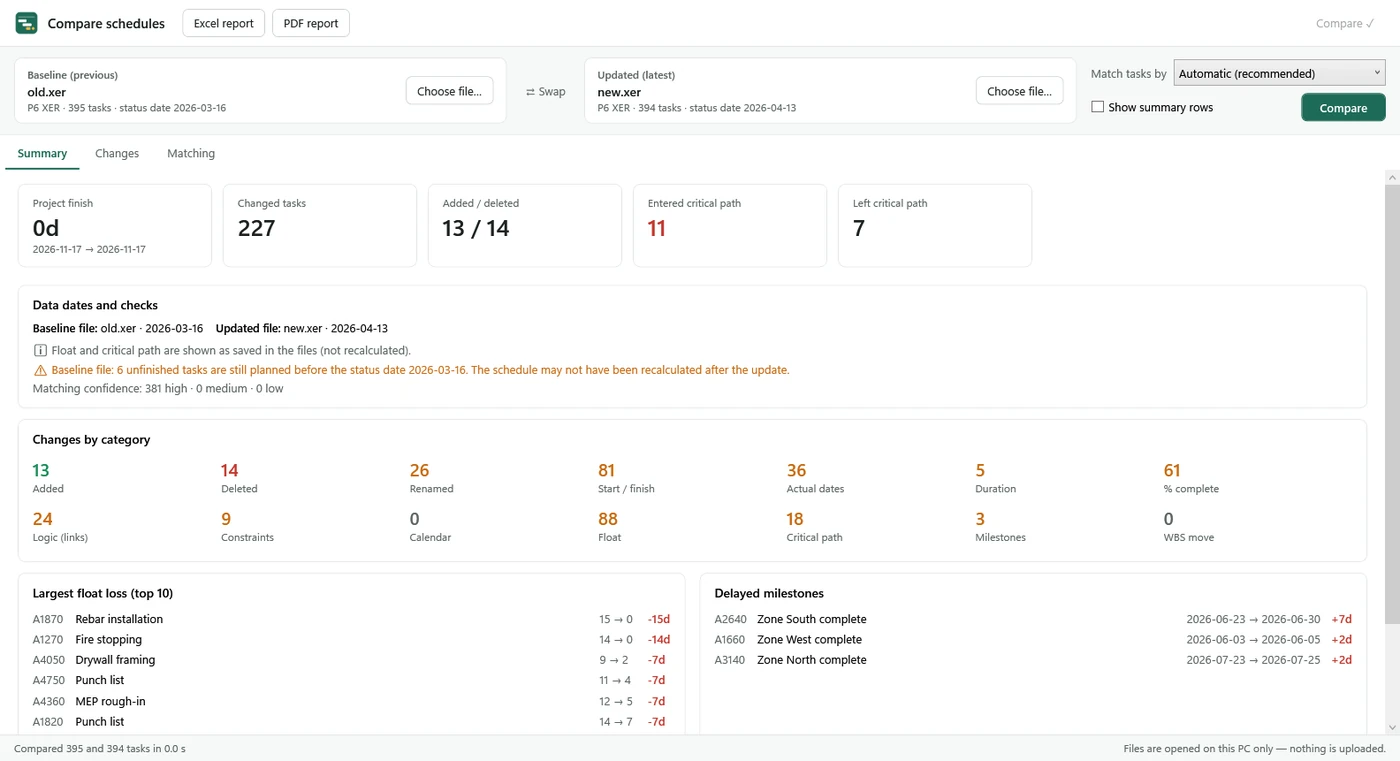
Start with project finish change, changed-activity counts, additions and deletions. Then inspect the top 10 float losses, delayed milestones and data-date checks. An unchanged finish date does not mean no activities changed.
3. Check activity matching
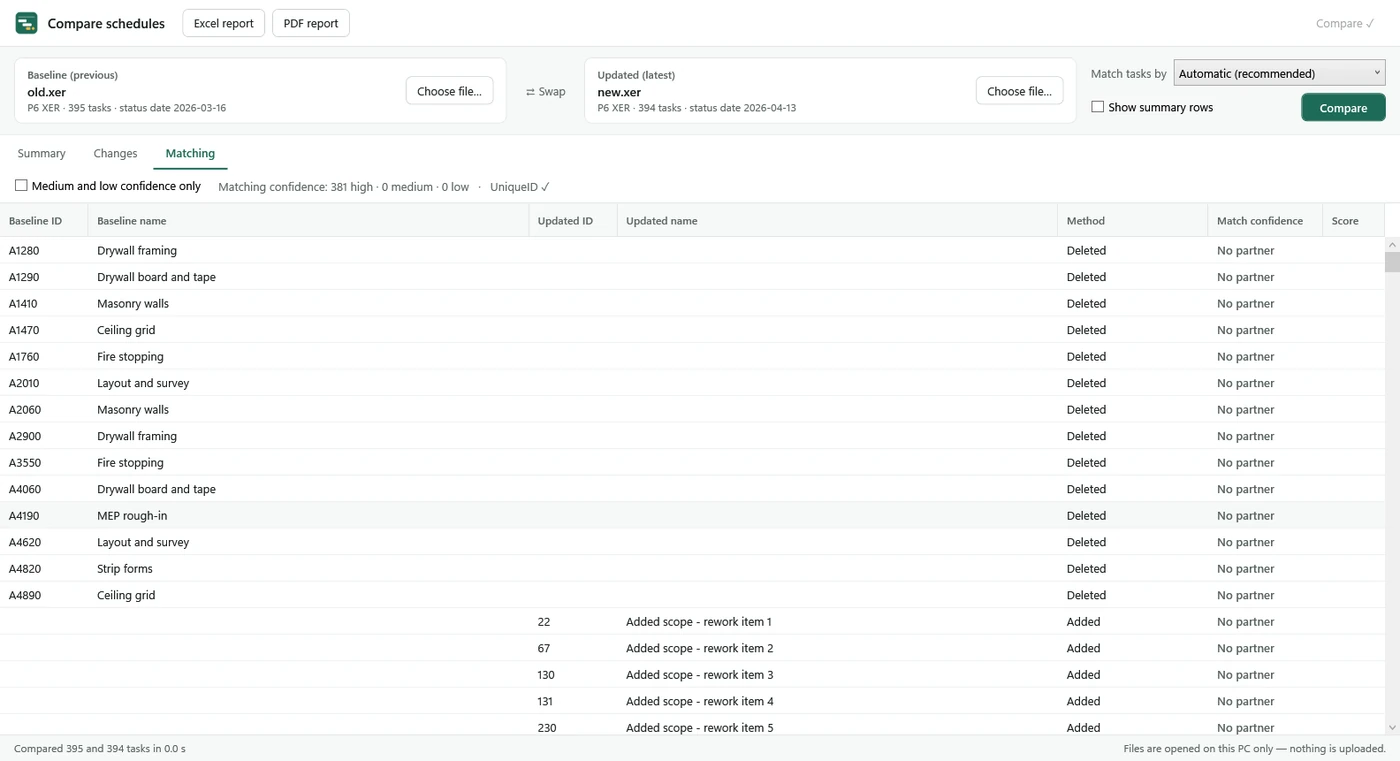
Re-exported or converted schedules can have different IDs. The app uses IDs, WBS paths and names to pair activities and shows the method and confidence for each pair. Review low-confidence pairs before interpreting a reported addition, deletion or change.
4. Review the changes that matter to the update
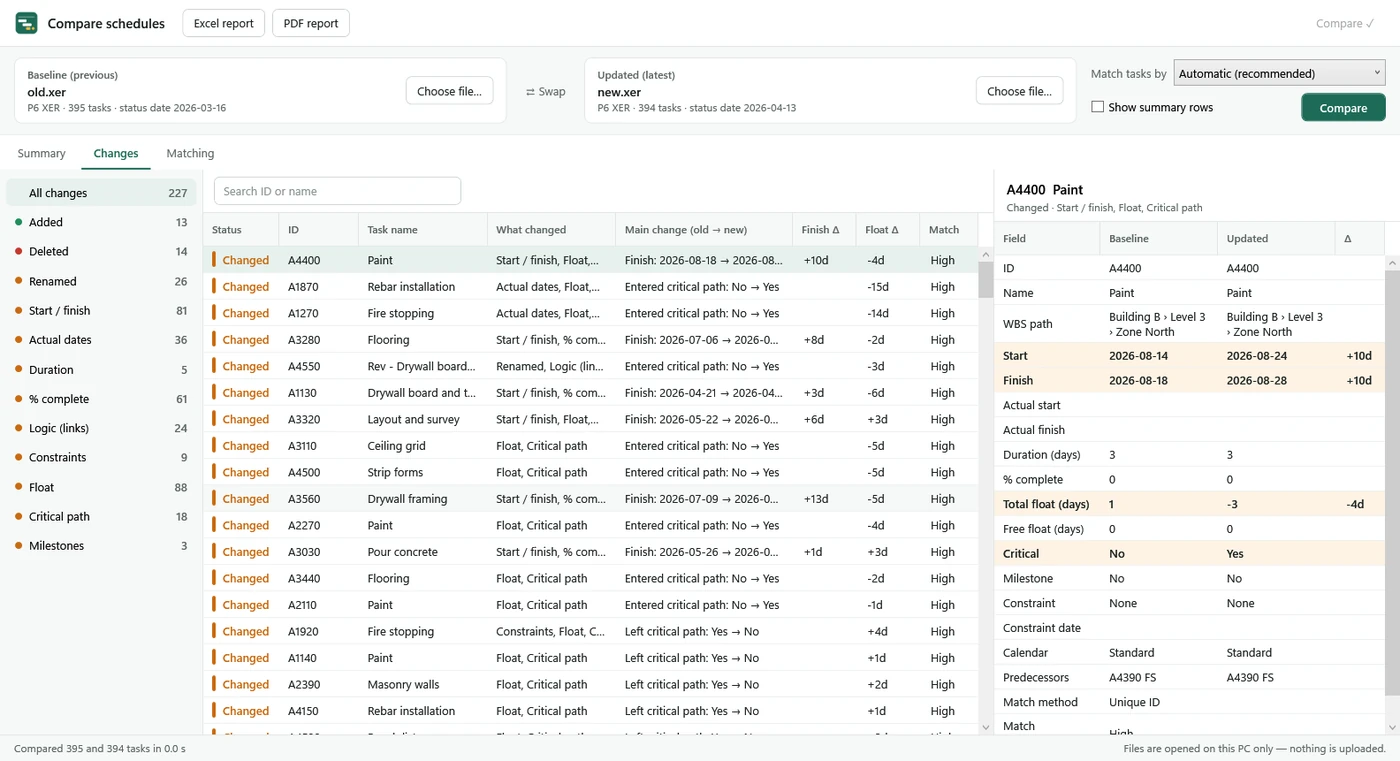
- Added and deleted activities, renames and WBS moves.
- Start/finish and actual-date changes, durations and progress.
- Added or removed links, link type and lag changes.
- Constraints, calendars, total/free float and critical path entries or exits.
- Milestone slips and the activities with the largest float loss.
Use the change categories and inspect previous/latest fields for the activity you are reviewing. A detected difference does not by itself establish its cause or explain project delay.
5. Prepare a review report
Summary counts and the top 10 changes are free. A Compare subscription unlocks the full list and Excel/PDF comparison reports for the monthly update narrative or review submittal, and includes all Pro features.
Pricing and access
| Plan | Price | Included |
|---|---|---|
| Viewing | Free | Read schedules. Comparison summary counts and top 10 changes. |
| Pro | One-time purchase · no subscription | Single-schedule Excel (CSV) export and printable PDF reports with the Gantt chart. |
| Compare · yearly | $99.99/year · 1-week free trial | Full comparison list, comparison Excel/PDF reports and all Pro features. |
| Compare · monthly | $12.99/month · 1-week free trial | Full comparison list, comparison Excel/PDF reports and all Pro features. |
Subscriptions renew automatically at the selected interval and can be cancelled in your Microsoft account. The trial is once per customer. Prices are in USD; check the purchase screen.
Review the results
- This is a read-only viewer and comparison tool. It does not edit or reschedule the source files. Float and critical path are read as saved in the files, not recalculated.
- Review each pair's matching method and confidence. Check low-confidence pairs before submitting.
- XER comparison is in beta. Verify key results in P6 before using them.
For supported files and the current certification status, see the app's comparison section. To read a P6 export first, see opening an XER file without P6.