SOYATOOLS / GUIDES
How to open a Stata .dta file without Stata
A .dta file is a Stata dataset: rows of cases, variables with labels, and often value labels and coded missing values. Someone sends you one, or a data archive offers it as a download, and you don’t have Stata. You can still read it on Windows, and turn it into an Excel or CSV copy, without uploading it anywhere.
What is in a .dta file
A .dta file is Stata’s own data format. Without Stata, there is usually no app on the PC that opens it. It holds more than a table of numbers, and that is what matters when you read it without Stata:
- Variable labels: a short variable name such as
q12with a longer description. - Value labels: the file may store
1and2and attach labels such as “Yes” and “No”. Which one you see, or export, changes what the data means to the reader. - Missing values: besides the plain missing value, Stata has extended missing values
.ato.z, often used for codes like “refused” or “not asked”. They should not be read as real answers. - File label, notes and dates that help you interpret the data.
Free and official ways
If you have access to Stata, through your organization or a colleague, that is the most direct route: use loads the dataset, and export excel saves it as an Excel file. export excel writes value labels unless you add the nolabel option, which writes the underlying numeric values instead.
If you can write a little code, two free routes read .dta files:
- R, a free software environment for statistical computing: the haven package’s
read_dta()reads Stata files and keeps value labels as labelled vectors, which you can turn into factors withas_factor(). The olderforeignpackage’sread.dta()reads only Stata 5–12 files and will not support later formats. - Python: the open-source pandas library has
pandas.read_stata(). By default it converts value labels to categorical columns (convert_categoricals=True) and replaces missing values with NaN; setconvert_missing=Trueto keep Stata’s missing value types.
Both work well if you already use them. If you only need to look at the data and hand an Excel copy to someone, a viewer is quicker.
Open a .dta file with SAV & DTA File Viewer
- Install SAV & DTA File Viewer from Microsoft Store.
- Open the .dta file in the app. Older Stata formats are supported too.
- Check File info first: row and variable counts, the file label, notes and the text encoding.
- Browse the data with variable names and labels. Sort it, or search every variable.
- Switch between stored codes and value labels with one click. Missing values, including Stata
.a–.z, are shown in gray. - Open Variable view to see each variable’s type, display format, label, value labels and missing values. Use Record view to read every variable of one case.
- If text in an older file looks wrong, choose the text encoding manually and check a few labels.
All of this is free, and so is copying a cell or one row. The file is read on your PC and works offline. In testing, a file with 100,000 rows and 200 variables opened in about 1–2 seconds; the time depends on your PC and the file.
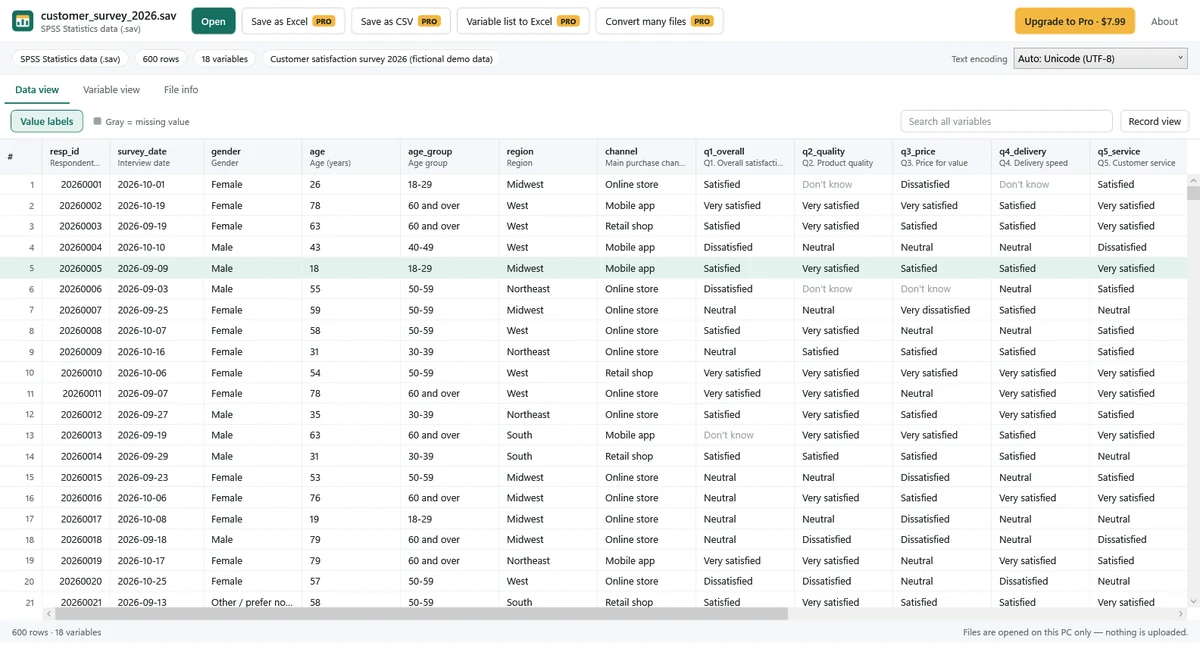
Save an Excel or CSV copy (Pro)
- Save the data as Excel (.xlsx) or CSV, and choose whether the copy uses stored values or value labels. If the reader will analyze the data, stored values are usually what they need; for reading, labels are clearer.
- Dates become real Excel dates in .xlsx output.
- Save the variable list (codebook), including value labels, as Excel, so the codes in the data can be looked up later.
- Copy several rows at once with headers, or convert several files at once.
Pro is a one-time purchase, not a subscription. Check Microsoft Store for the current price. After saving, compare a few rows and the row count with the app.
Limits
- It is a viewer and converter. It does not edit data, run statistical analyses or make charts.
- SAS (.sas7bdat, .xpt), SPSS portable (.por) and SPSS output (.spv) files are not supported in this version.
- A truncated or damaged file produces a message. When possible the app opens the rows it can read; this does not restore missing data.
Have an SPSS file too? The same app opens .sav and .zsav files; see how to open a SAV file without SPSS.
FAQ
Do I need Stata installed to open a .dta file?
No. SAV & DTA File Viewer reads .dta files on its own, and R (haven) or Python (pandas) can read them too if you write code.
Will it open a .dta file from an old version of Stata?
The app supports older Stata formats. If labels look garbled in an older file, choose the text encoding manually and check the result.
Should I export codes or value labels?
Both are possible with Pro. Codes keep the data ready for analysis; labels are easier to read. If you export codes, also save the codebook so the meaning of each code travels with the data.
Can I edit the data or run a regression?
No. The app is for viewing and converting. For analysis, open the exported copy in a statistics program, or use Stata, R or Python.
Is my data uploaded?
No. Files are processed on your PC and are never uploaded or collected by SoyaTools. Exports are saved where you choose. See the Privacy Policy.