SOYATOOLS / GUIDES
How to open a SAV file without SPSS
Need to read an SPSS .sav or .zsav file without SPSS? SAV & DTA File Viewer is one Windows option for viewing the data locally, inspecting labels and missing values, and saving an Excel or CSV copy with Pro. It also reads Stata .dta files.
1. Open the data file
- Install SAV & DTA File Viewer from Microsoft Store.
- Open or double-click your .sav, .zsav or .dta file.
- Check the row and variable counts in File info, then browse, sort or search the data. Use Record view to see every variable in one case.
Opening, viewing, searching, sorting and copying a cell or one row are free. Files are read on your PC without an upload.
2. Understand codes, labels and missing values
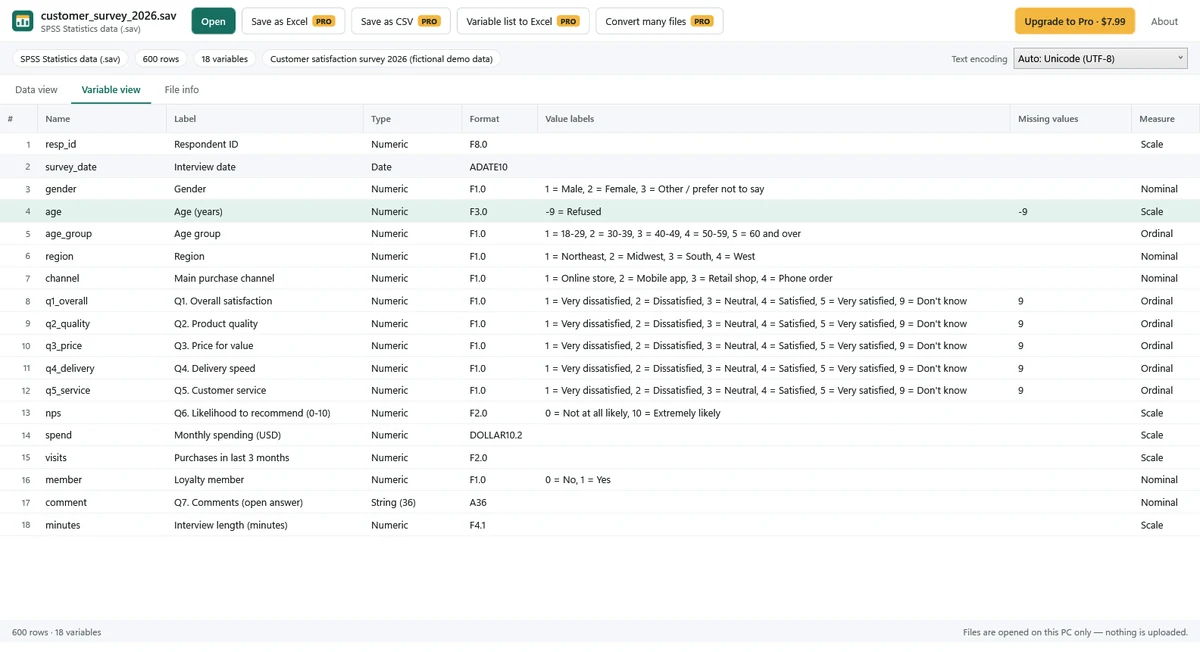
A stored code and its value label are different things: a survey might store 1 and display a label such as Male. Use the Value labels switch to view codes or labels. Check Variable view for variable types, display formats, descriptions, value-label definitions, missing values and measure levels.
The app shows missing values in gray, including SPSS user-missing values and Stata .a–.z. Inspect the variable definitions before interpreting a code or label as a valid observation.
3. Check text encoding in older files
If names, labels or other text look wrong, choose a text encoding manually and check several entries before exporting. File info includes the file's text encoding, labels and notes.
4. Save an Excel or CSV copy
- Choose Save as Excel or Save as CSV.
- Choose whether the exported data should use stored values or value labels.
- Choose an output location on your PC and check the saved copy. Dates are saved as actual Excel dates in .xlsx output.
- If you also need variable definitions, save the variable list (codebook) with value labels to Excel.
Excel/CSV saving, codebook export, copying multiple rows with headers and batch conversion are Pro features: one-time purchase, no subscription. Check Microsoft Store for the current price. For several input files, use the batch conversion feature.
Can it open DTA, SAS or SPSS output files?
| File | This version |
|---|---|
| SPSS .sav / .zsav | Data viewing and Pro Excel/CSV conversion. |
| Stata .dta | Data viewing, value labels and missing values; Pro export. |
| SAS .sas7bdat / .xpt | Unsupported. |
| SPSS portable .por | Unsupported. |
| SPSS output .spv | Unsupported. |
Limits to keep in mind
The app is a viewer and converter. It does not edit data, run statistics or make charts. A damaged or truncated file produces a message and, when possible, opens the rows that remain readable; this does not recover missing data.
Read the Privacy Policy, see the app's features or contact support.