SOYATOOLS / GUIDES
How to redact a PDF properly, and remove hidden information, offline
Drawing a black rectangle over a name or number makes it disappear on screen, but that does not mean it is gone from the file. Real redaction deletes what is under the box from the saved PDF. Documents also carry information you do not see, such as authors, comments, tracked changes or earlier versions, which leaves with the file unless you remove it.
Why a black box is not redaction
A box drawn with a shape, comment or highlight tool is an extra object placed on top of the page. Unless the tool also removes the content beneath it, the covered text can still be in the file, where it may be selected, copied or found with search. The same goes for setting text to white. Adobe itself calls covering methods such as a black marker or changing the font color “not foolproof” (Adobe).
A quick check on any “redacted” file: open the saved copy, search for the hidden value with Ctrl+F, and try to select the text across the box. If the value is found or copied, it was covered, not removed.
Visible text is only half of it. A PDF can hold comments, form fields, bookmarks, attachments, metadata and earlier versions of itself; Word, Excel and PowerPoint files can hold authors, tracked changes, comments, hidden rows and sheets, speaker notes and photo GPS data.
Official options
Adobe Acrobat Pro: Redact
Adobe documents a Redact tool for Acrobat Pro (Adobe Help: redact sensitive content in PDFs in Acrobat Pro). Adobe describes it as permanently removing text and graphics: you mark areas, or use Find Text & Redact to mark every occurrence of a word or pattern (it works best in PDFs with searchable text), then apply the redactions and save. A sanitize option removes hidden data and metadata at the same step. Adobe notes that marked items are not permanently removed until you save, and recommends saving under a different file name (Adobe: how to redact a PDF). If you already have Acrobat Pro, it is the obvious choice.
Microsoft Office: Document Inspector
For Word, Excel and PowerPoint files, Office has a built-in Document Inspector. In Word, choose File > Info > Check for Issues > Inspect Document, select Inspect, then Remove All next to the categories you want gone: comments, revisions, versions and annotations, document properties and personal information, headers, footers and watermarks, hidden text, custom XML data and invisible content. Microsoft recommends running it on a copy, because removed data cannot always be restored with Undo, and notes that it cannot find text hidden in other ways, such as white text on a white background (Microsoft Support). It removes hidden data; it does not black out visible text.
Redact a PDF with Redact PDF & Remove Metadata
The app works on .pdf, .docx, .xlsx and .pptx files on your PC, with no account and no upload. The original file is never changed.
- Install Redact PDF & Remove Metadata from Microsoft Store and open the PDF.
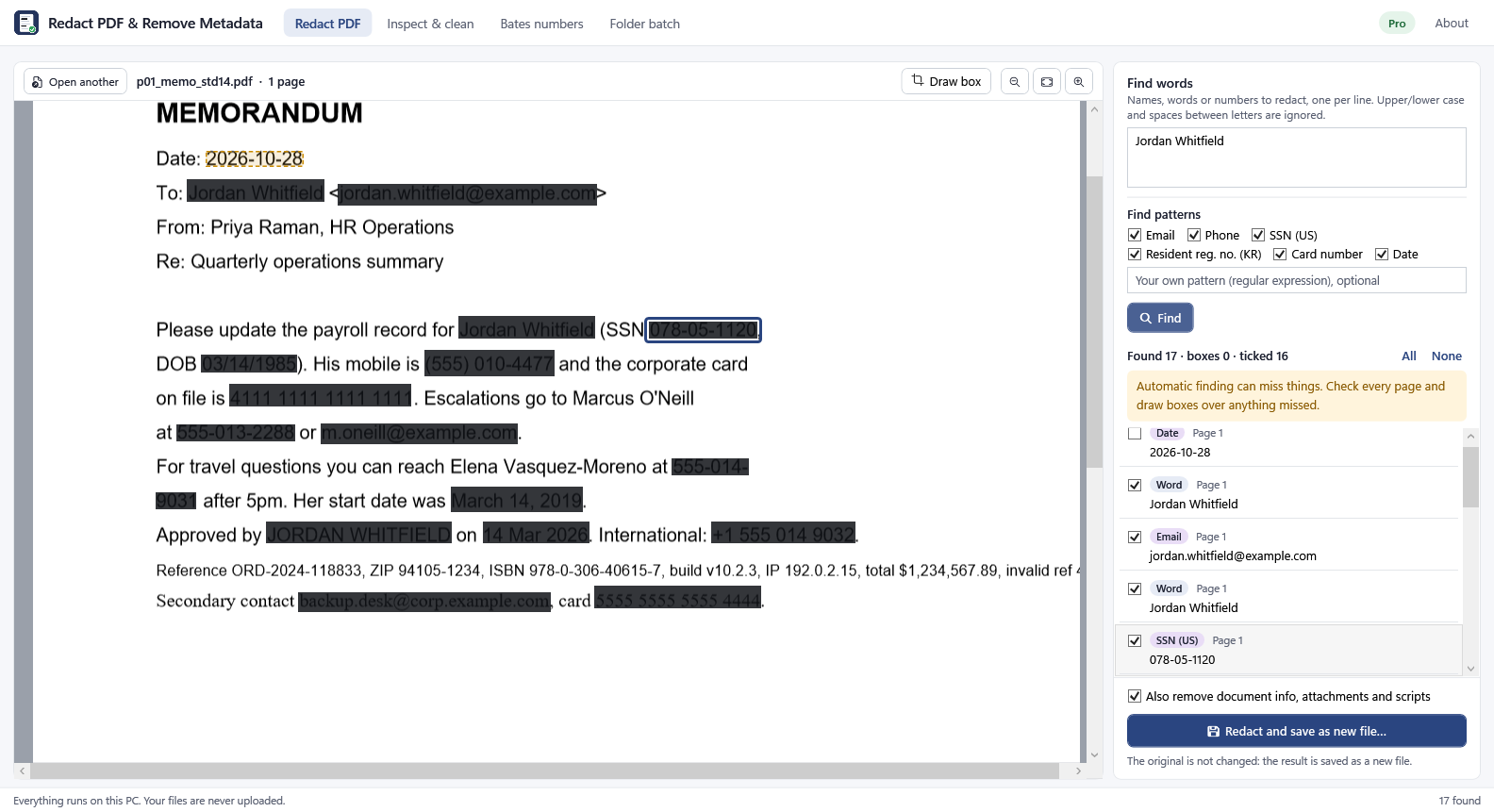
- Mark what must go: search for a word, or draw a box over it. Both are free, one file at a time. With Pro, automatic patterns also find email addresses, phone numbers, US SSNs, Korean resident registration numbers, card numbers, dates and a pattern of your own, and Windows’ own text recognition finds text in scanned pages.
- Check every item. Found names, numbers and patterns are listed: untick what should stay and draw a box over anything that was missed. Automatic finding can miss things, and the app says so.
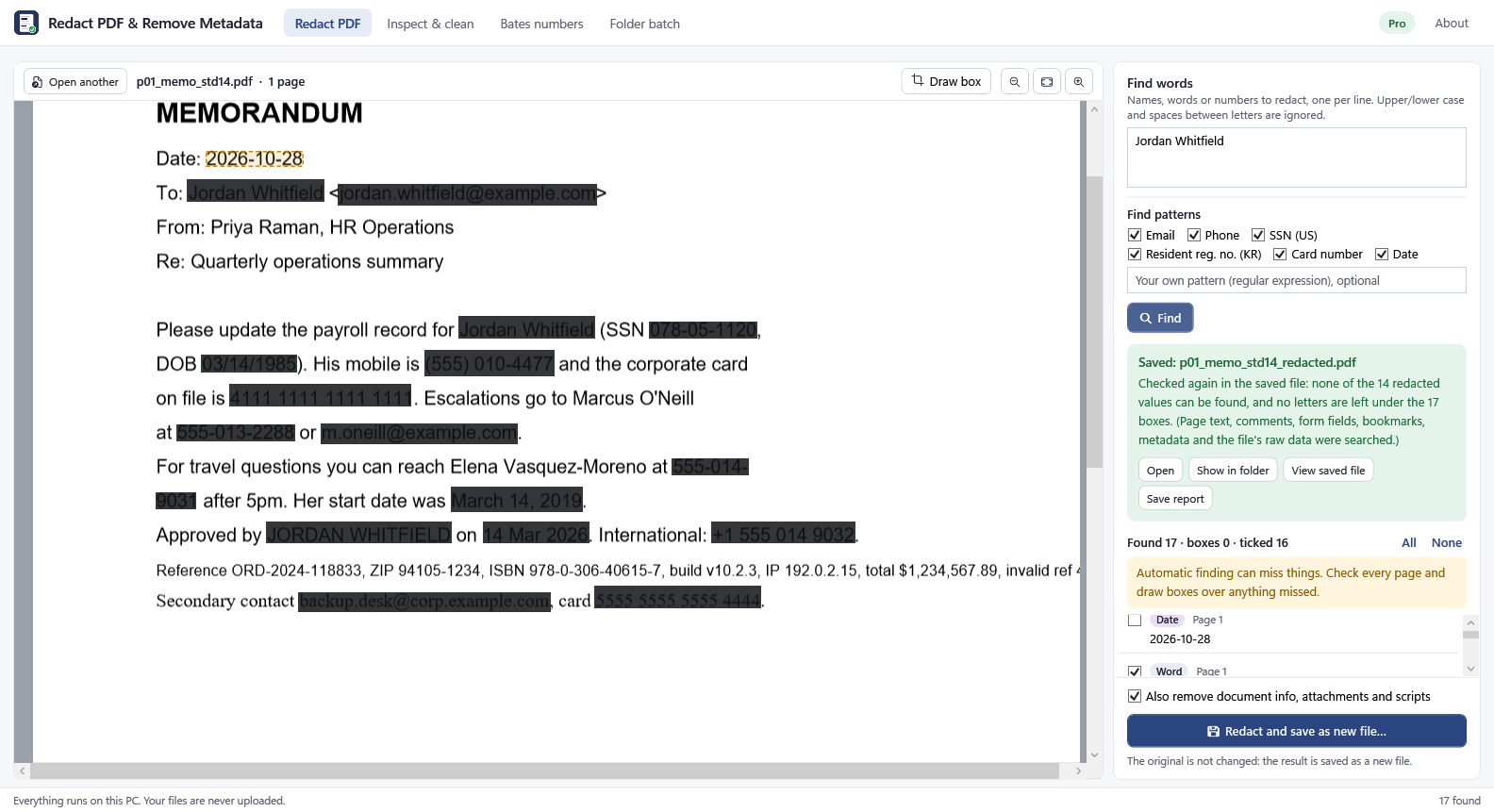
- Save. Text, pictures and drawings under each box are removed from a new file, and comments, form fields, bookmarks and metadata holding the value are cleaned too.
- After saving, the app reads the new file again and shows what can still be found, normally nothing. Open the new file yourself before you share it.
Free and Pro
| Free | Pro ($49.99/year or $7.99/month, 1-week free trial) |
|---|---|
| Inspect any file | Automatic patterns: email, phone, US SSN, Korean resident registration number, card, dates, your own pattern |
| Remove metadata, one file at a time | Scanned PDFs (OCR) |
| Redact by search word or drawn box, one file at a time | Content cleaning: tracked changes, comments, hidden content |
| — | Folder batch, Bates numbers, process reports |
Measured, not promised
- Automatic finding can miss things, so always check the list and the pages. On the hardest test set (written before the patterns were last changed) the patterns found 20 of 34 items, with no wrong finds; numbers without separators, some date formats and spelled-out email addresses were missed.
- Redaction: 22 test PDFs (text, tables, two columns, images, forms, comments, bookmarks, attachments, scans, rotated pages, hidden layers, earlier versions) were redacted and read again in five different ways with three independent PDF libraries and a raw scan: none of the redacted values was found.
- Office cleaning: 49 test files, 635 hidden items, all removed as chosen; large workbooks (1 million rows) are cleaned with under 100 MB of memory.
Limits
- Text the OCR cannot read is not found; draw boxes over it.
- Pictures in JPEG 2000 or JBIG2 form under a box are removed whole.
- Lines that cross a box stay.
- Redacting removes a PDF’s accessibility tags.
- Visible content such as headers, hyperlinks and chart data is listed but not changed.
- Old formats (.doc, .xls, .ppt) are not supported.
- Results have not yet been checked in every viewer: open the new file before you share it.
FAQ
Is a black highlight added in a PDF reader the same as redaction?
Not necessarily. If the tool only places a box on top, the text can remain in the file. Search the saved file for the value and try to copy across the box; if it is found, it was not removed.
Can the free version find phone numbers or ID numbers automatically?
No. Automatic patterns are part of Pro. In the free version you redact by search word or by drawing a box, one file at a time.
Does it work on scanned PDFs?
With Pro, Windows’ own text recognition finds text in page pictures and the pixels are erased. Text the OCR cannot read is not found, so draw boxes over it.
Is my original file changed?
No. The app saves a new file and never changes the original.